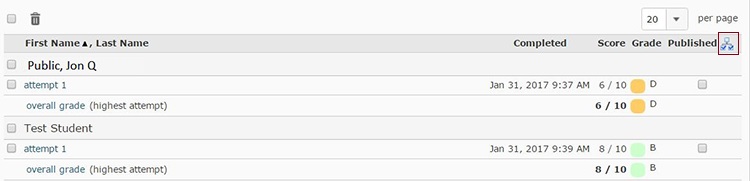
If you need to Publish/Re-Publish Quiz scores to the Grades tool, you can do so using the following steps:
If a student does not see their quiz grade in their grade book, you will need to reset it. This often means the quiz is not set correctly to push the grade to the grade book. To correct this issue, you will need to reset the quiz and republish existing grades.
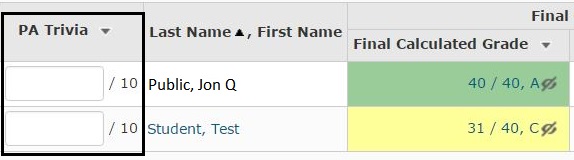
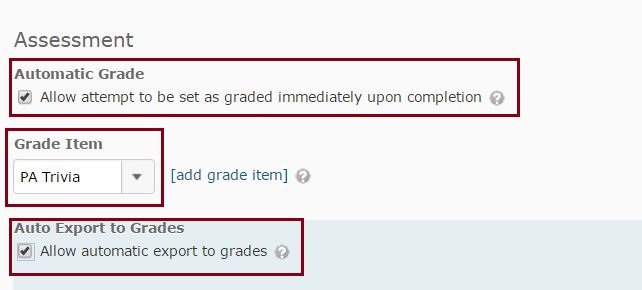
Click on the Quizzes link. From the drop-down menu next to the desired quiz title, select Edit. Select the Assessment tab. Make sure you have a Grade Item column name in the grade item drop-down menu. Make sure the box next to Allow automatic export to grades is checked Make sure the box next to Allow attempt to be set as graded immediately upon completion is checked. Click on the Save button.
Next, at the top above the tabs, click on the drop-down next to the quiz name and select Grade.
Make sure that you have set the number per page at 200. If the publish box next to each student's name is checked, click the Graded icon just to the right of the word Published in the headings. This will un-check all boxes of the students. Select the Save button at the bottom of the page.
You can select and deselect all users by hitting the checkbox beside the garbage can above the list of student quiz attempts. Also, you can select/deselect all publish items by clicking the icon beside the publish label. We recommend attempting this in a test environment before making any changes, if possible.
Next, click the Graded icon just to the right of the word Published in the headings again. This will check all the boxes of the students in the column. Select the Save and Close button at the bottom of the page. Go the Enter Grades section of the grade book and verify that the quiz grades are now in the grade item column you selected.